
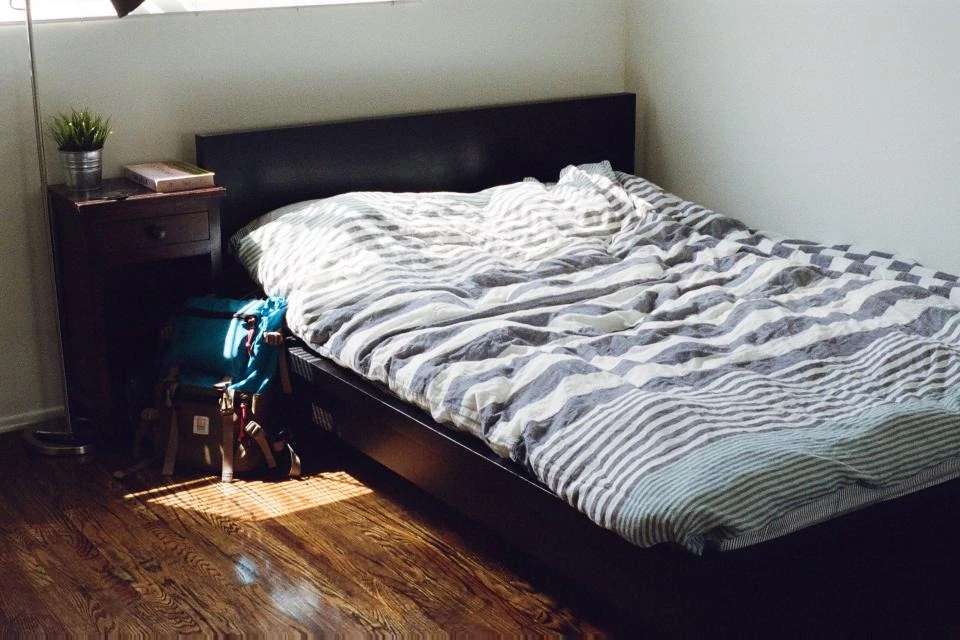
 01
01Start with a readable photo
Choose a photo where the room type, furniture edges and fixed boundaries are visible. The bedroom image shown here is a traceable CC0 input.
A practical photo workflow
The useful part is the boundary you choose. Follow the same three stages in the workbench, then make a correction when the result changes more than you intended.
Open the guided workbenchMark what should change, compare the result with the original, and decide whether the direction is worth exploring. No promise of perfect geometry or a 100% unchanged layout.
01Choose a photo where the room type, furniture edges and fixed boundaries are visible. The bedroom image shown here is a traceable CC0 input.
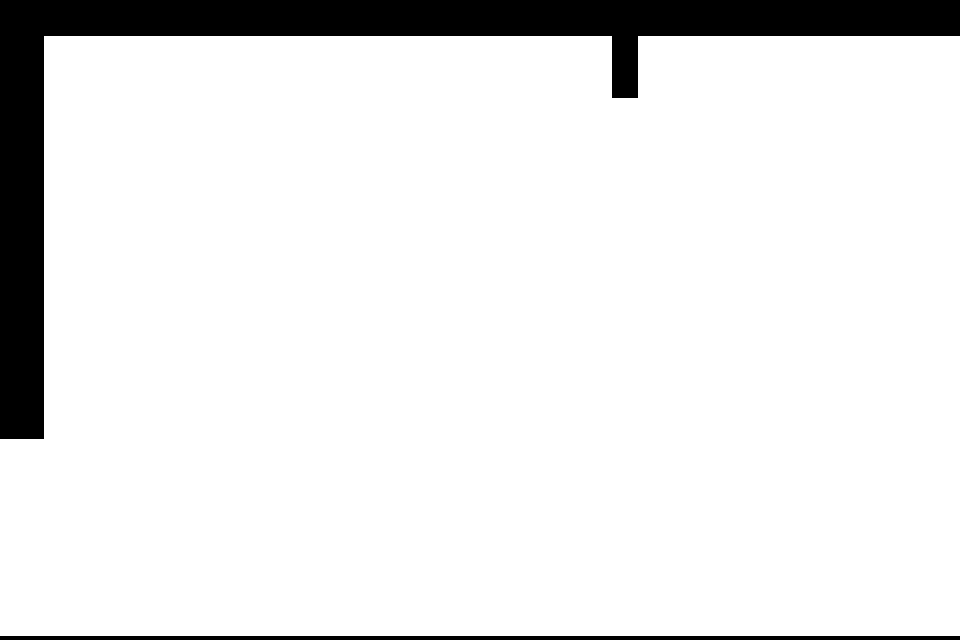 02
02Use the mask as an instruction. Keep windows, doors, walls and edges outside it when they should remain a reference.
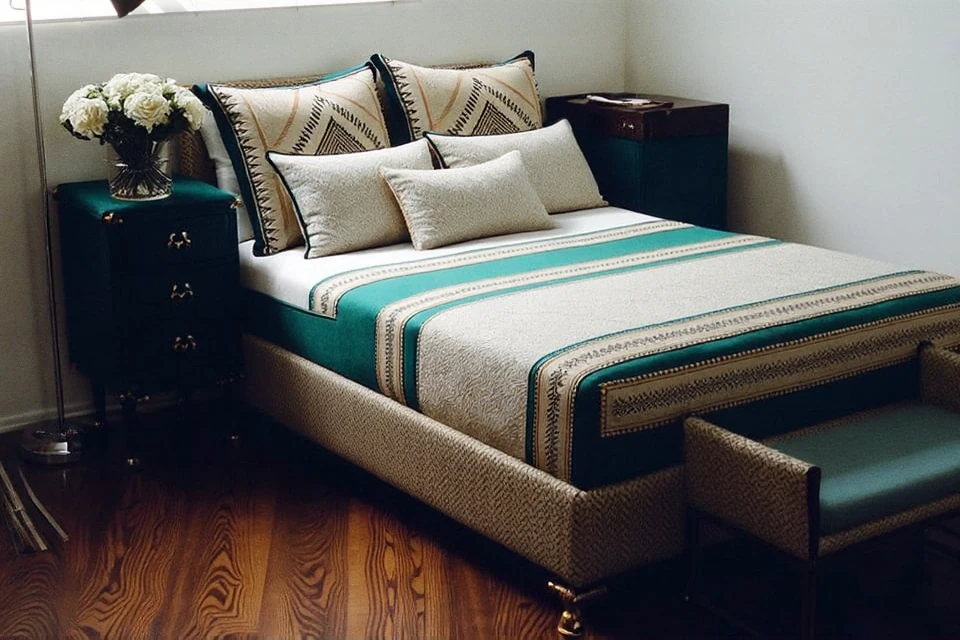 03
03Drag the comparison, check the fixed boundaries, and decide whether the direction is useful. A beautiful image can still be a poor answer for your room.
When the first result is too broad
If a window, wall edge or other fixed feature drifts, return to the mask and remove that area. If the selected area is too small, expand it around the object without painting the architecture. Then compare again and keep the original beside the new result.
Use the documented bedroom sample first, or upload a room photo you are comfortable processing. Painting the sample is local; generation uses the current trial allowance.
Open the guided workbench