
A tired living room, reimagined in warm color
AI design concept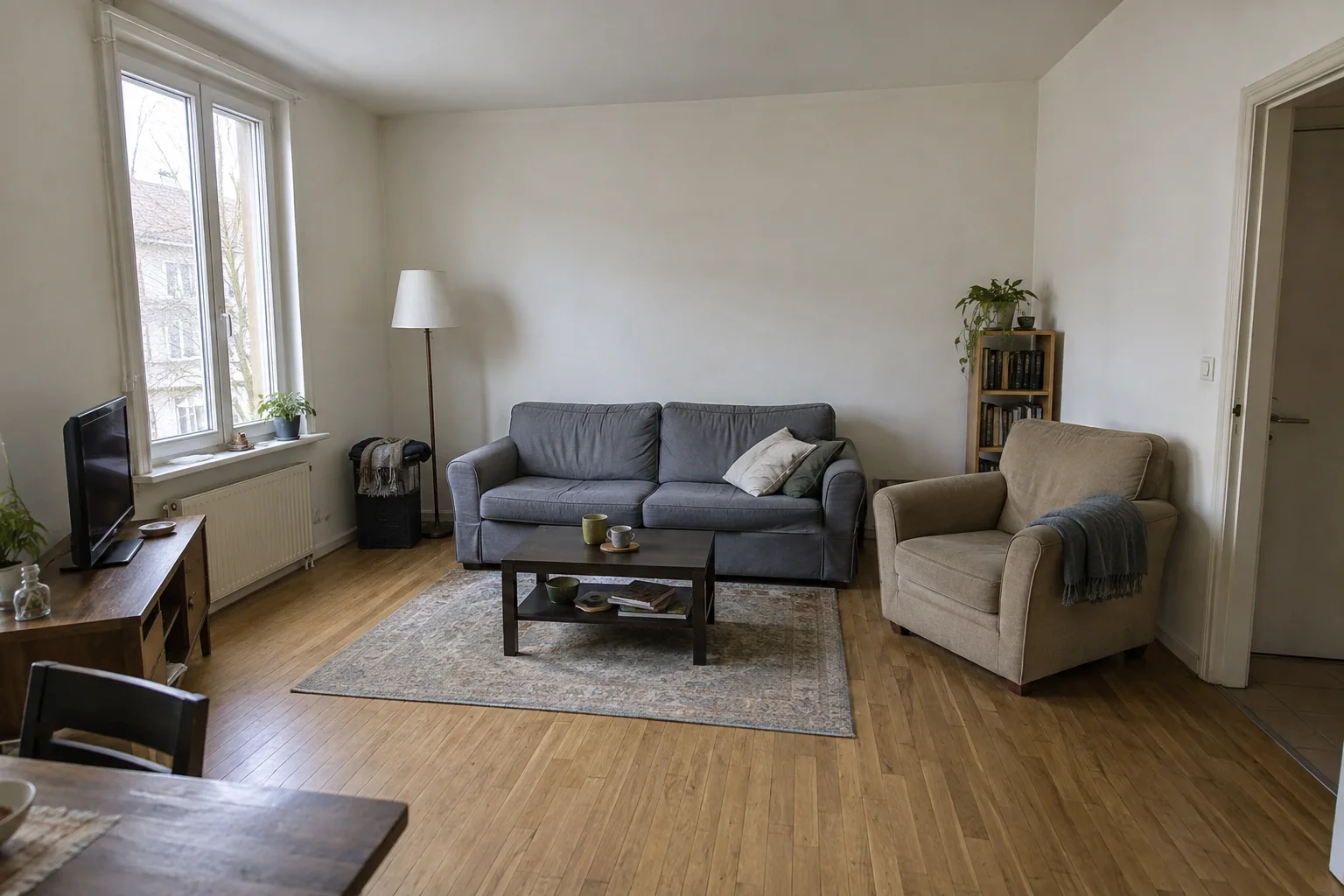
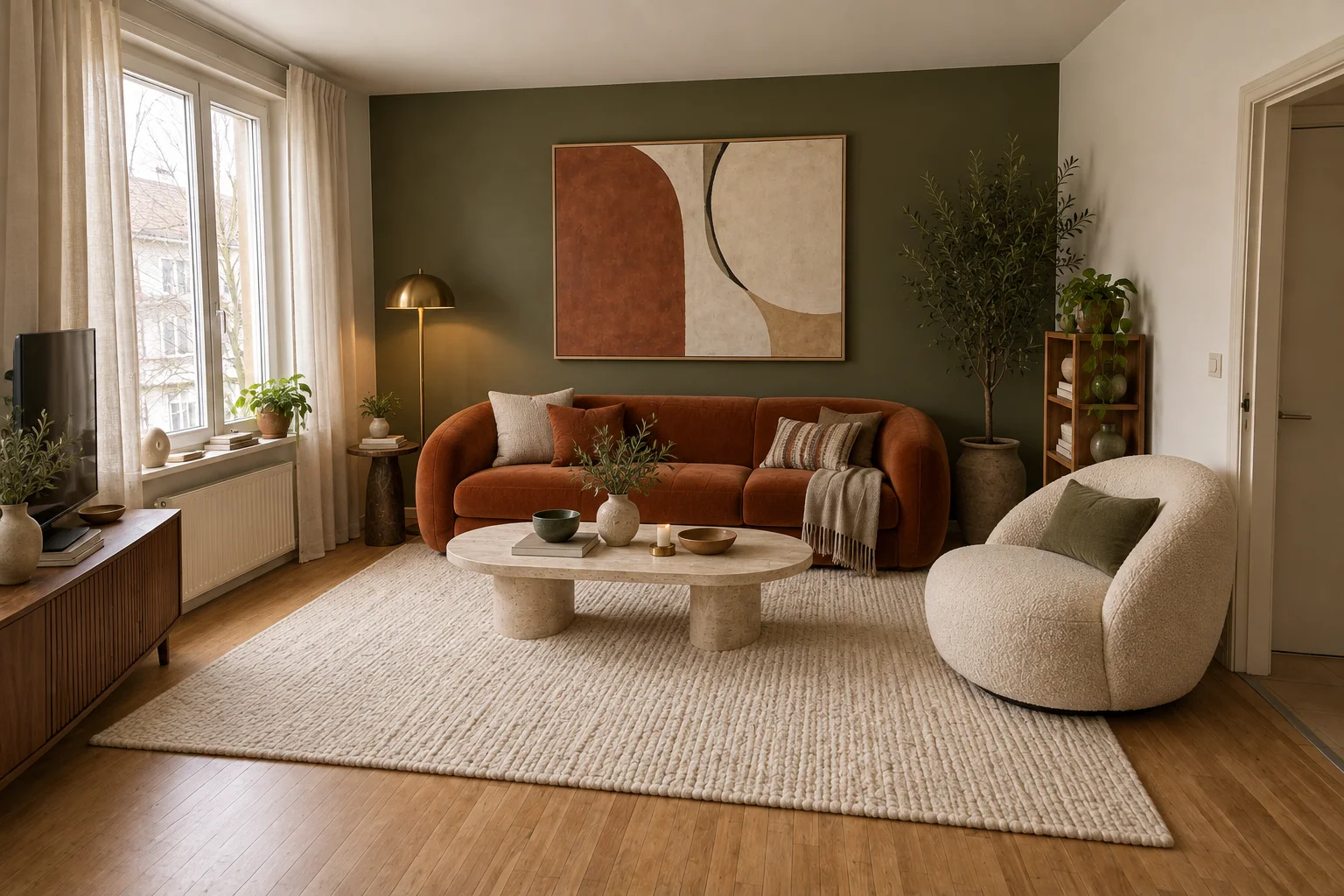
Gray upholstery and a bare wall give way to burnt-orange velvet, olive green and a light stone coffee table.
A fresh perspective on home
Upload a photo, mark what you want to change, and explore a new style for your living room or bedroom.
Choose a sample or your own photo and paint the area to change — all in your browser, no credits used.
Sign in with Google to get 3 free generations — no card needed. More credits come in one-time packs.
See before & afterAI design concept for inspiration. Your own results will vary.
Choose a sample or your own photo, then paint the furniture and decor you want to change. Selecting and painting stay in your browser and use no credits. Nothing is sent for image processing until you press Generate. Generation requires a signed-in account, an available credit and service availability.
Before & after inspiration
Explore changes in color, furniture and texture. These before-and-after pairs are AI design concepts for inspiration — open the section below to see real results from the editor, with their original photos.
Gray upholstery and a bare wall give way to burnt-orange velvet, olive green and a light stone coffee table.
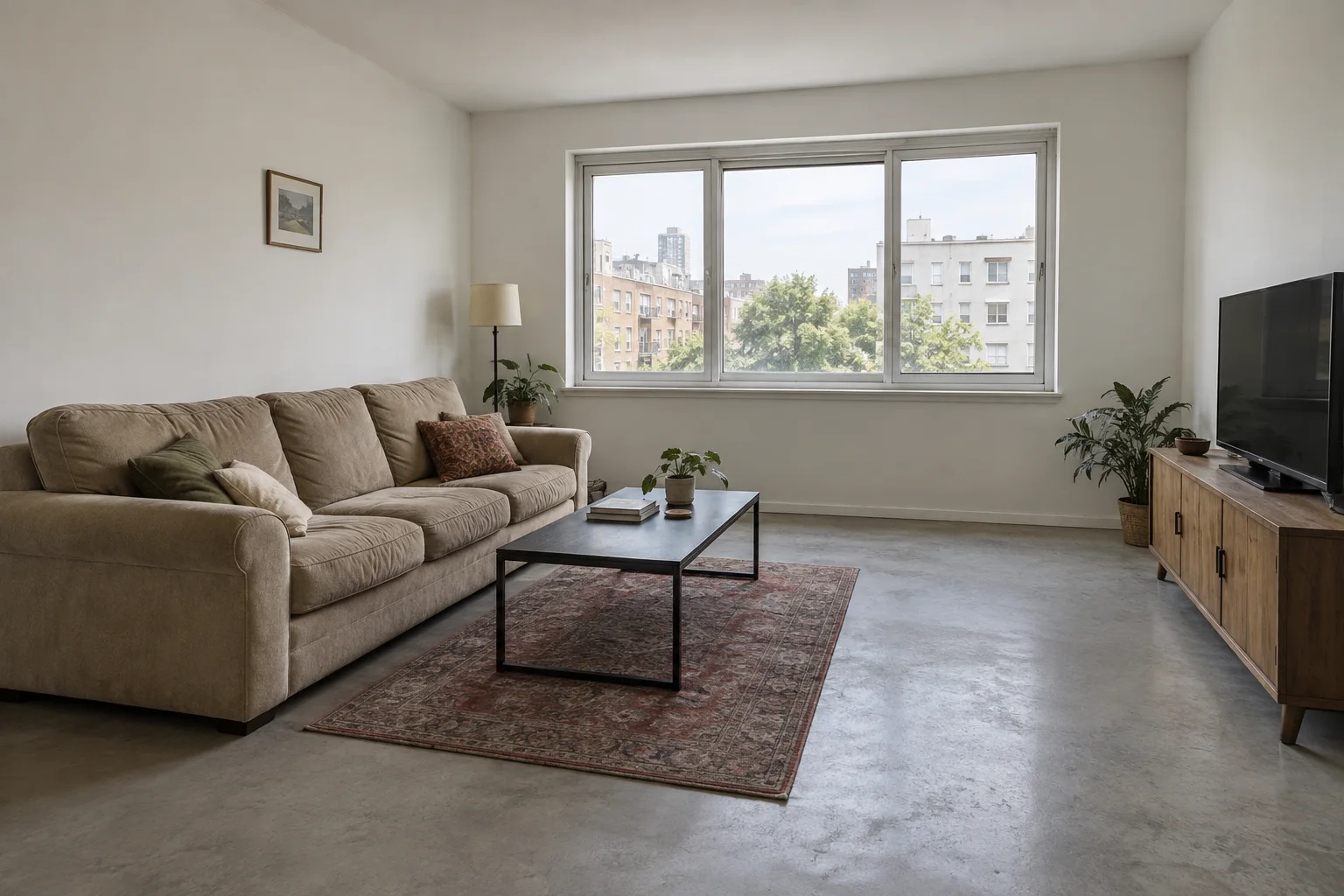
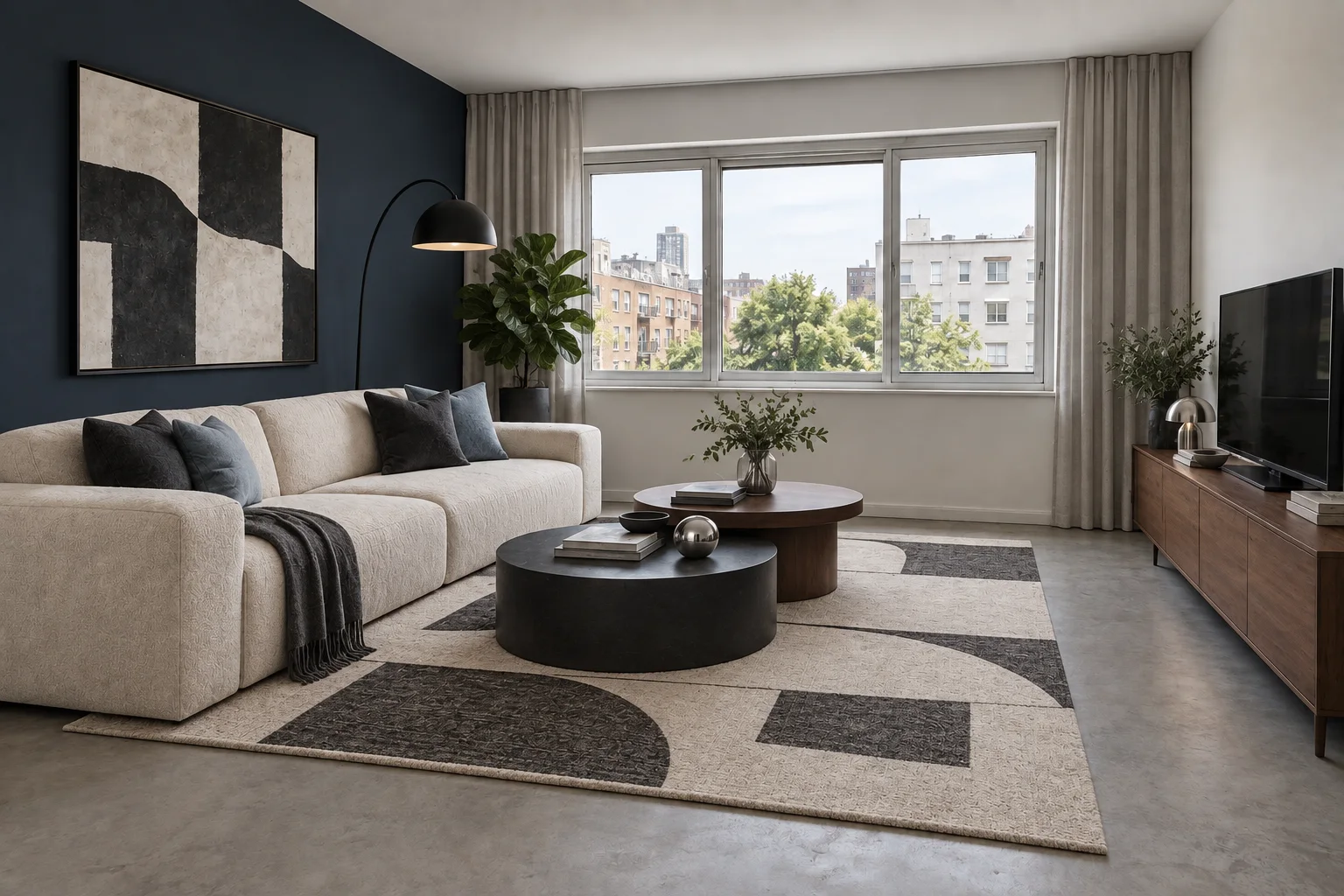
A dated beige sofa and small rug become sculptural ivory seating, an ink-blue accent wall and layered walnut and charcoal.
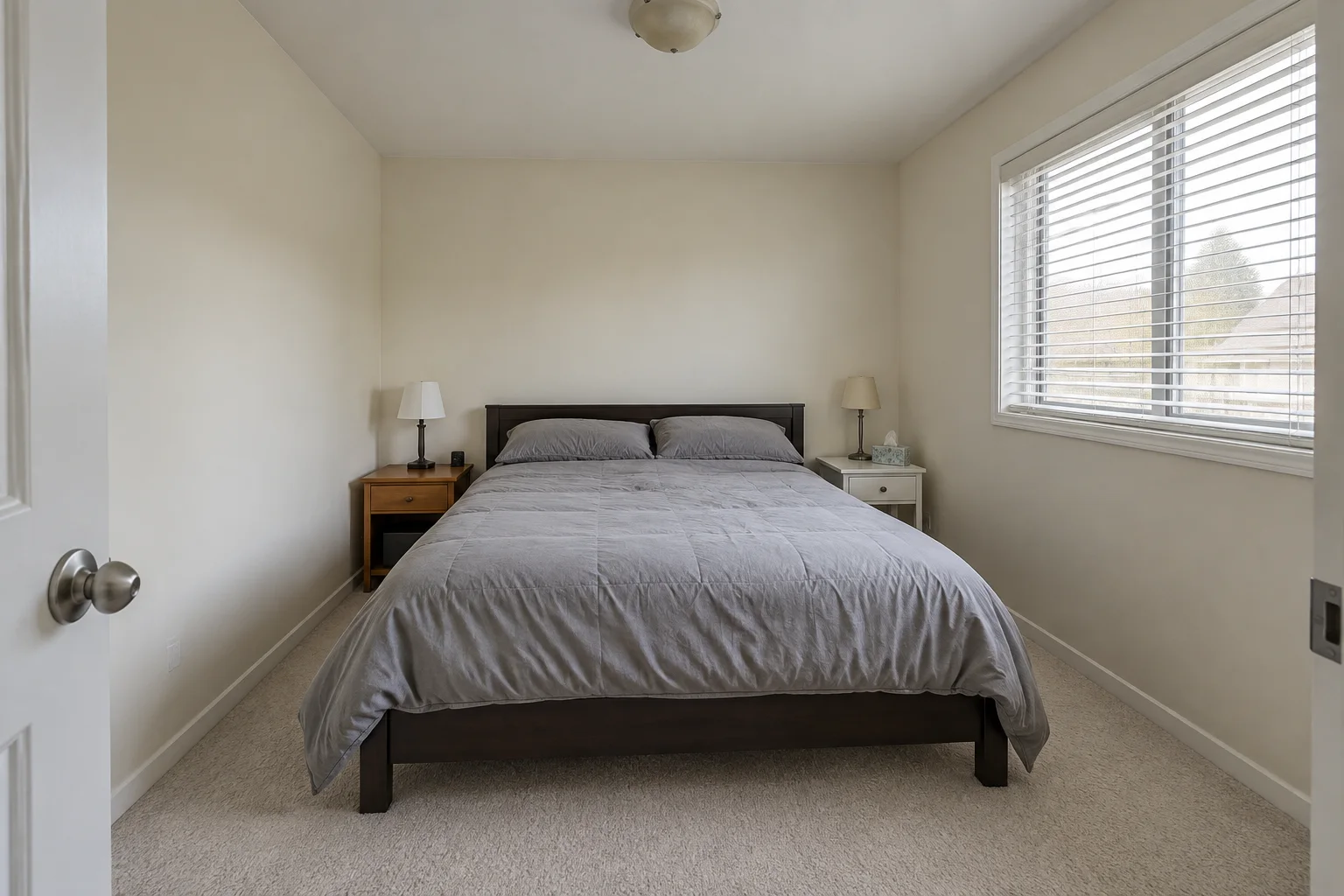
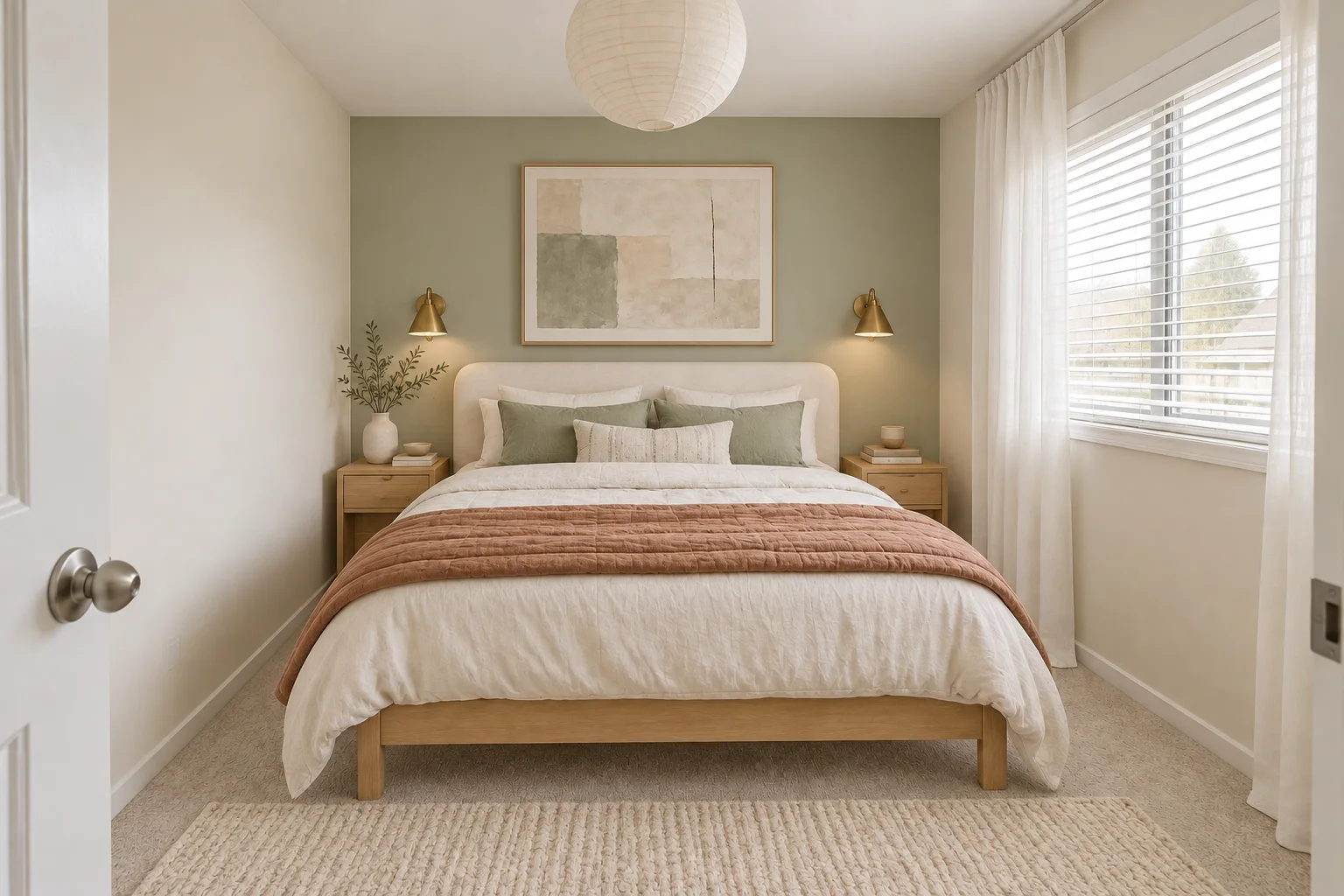
Dark furniture and flat gray bedding become pale oak, layered linen and a calm sage backdrop.
Selected-area redesign
These are CC0 sample photographs, not customer rooms. The examples use the editing model available in the workbench. Compare the complete photos and inspect the selected area. AI can change details outside the selection; always check the result.
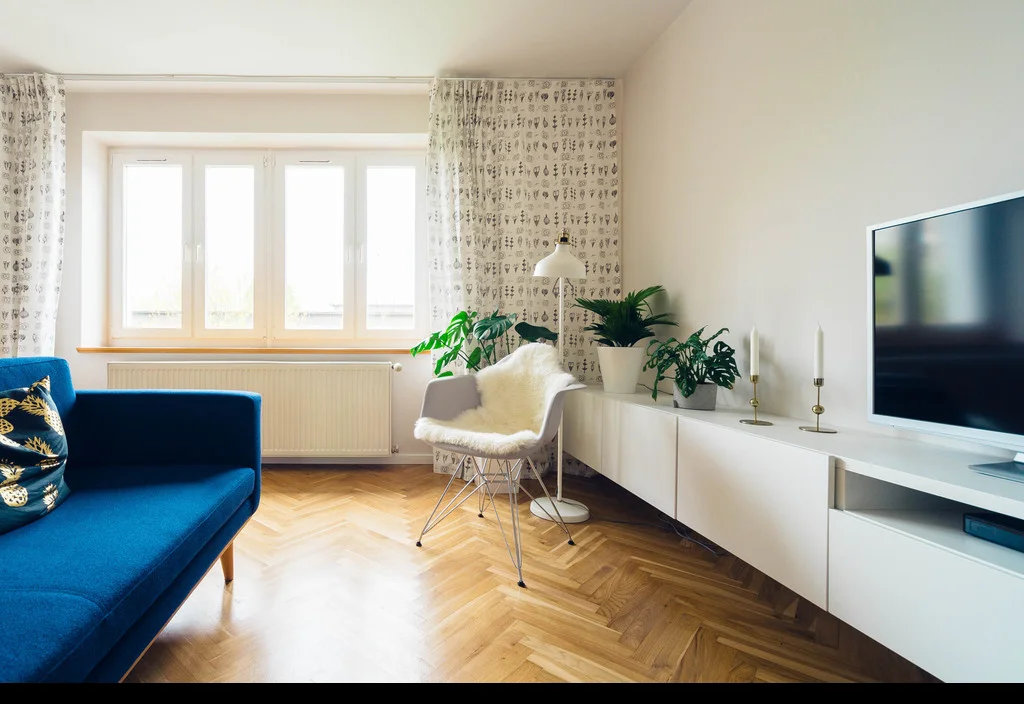
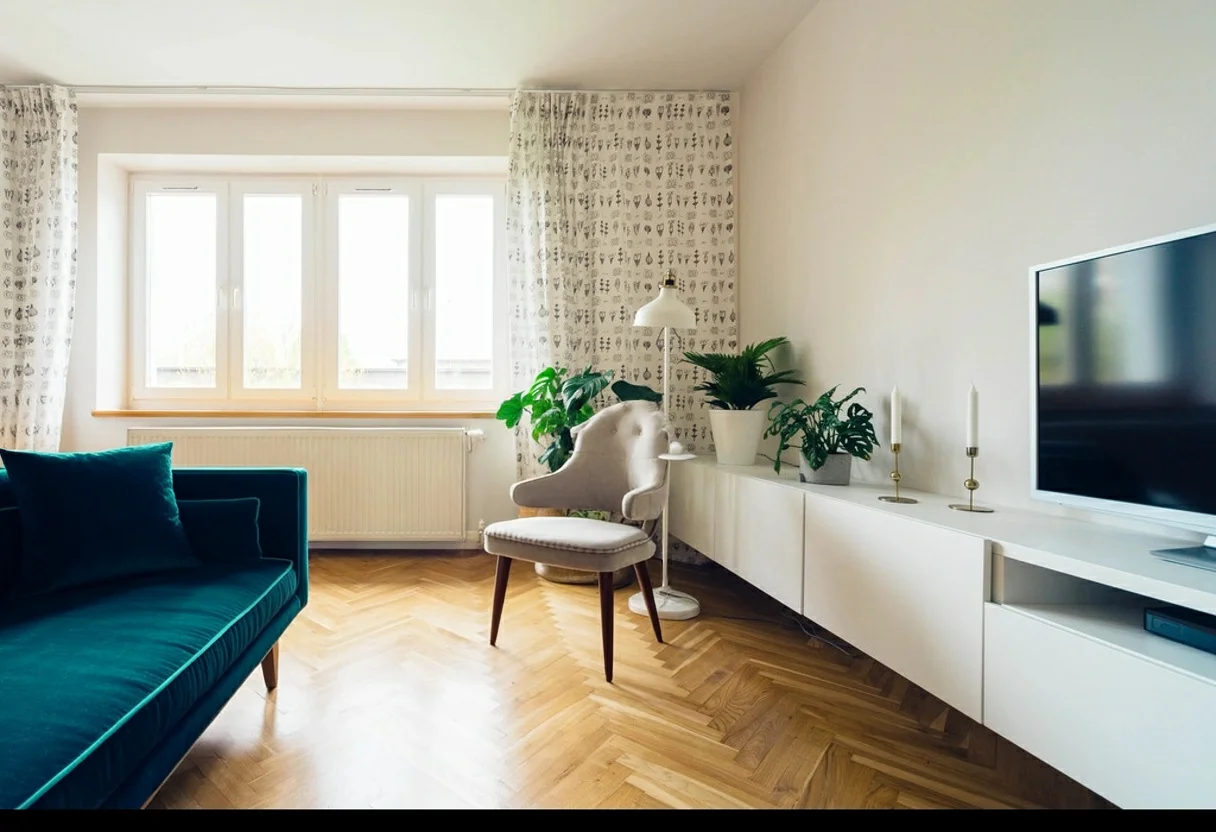
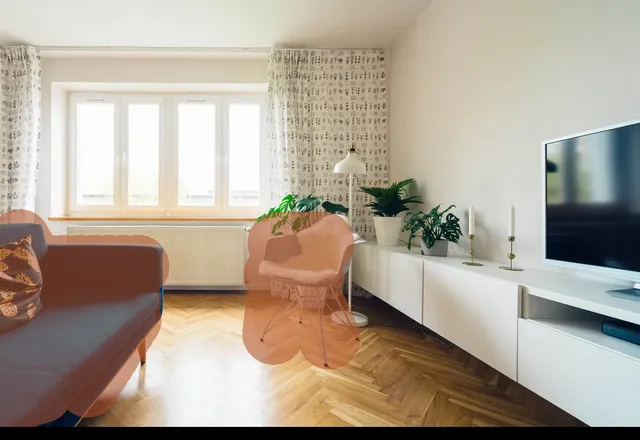
The selected sofa and chair change shape and material. The window and camera view remain recognizable, with small differences around edges.
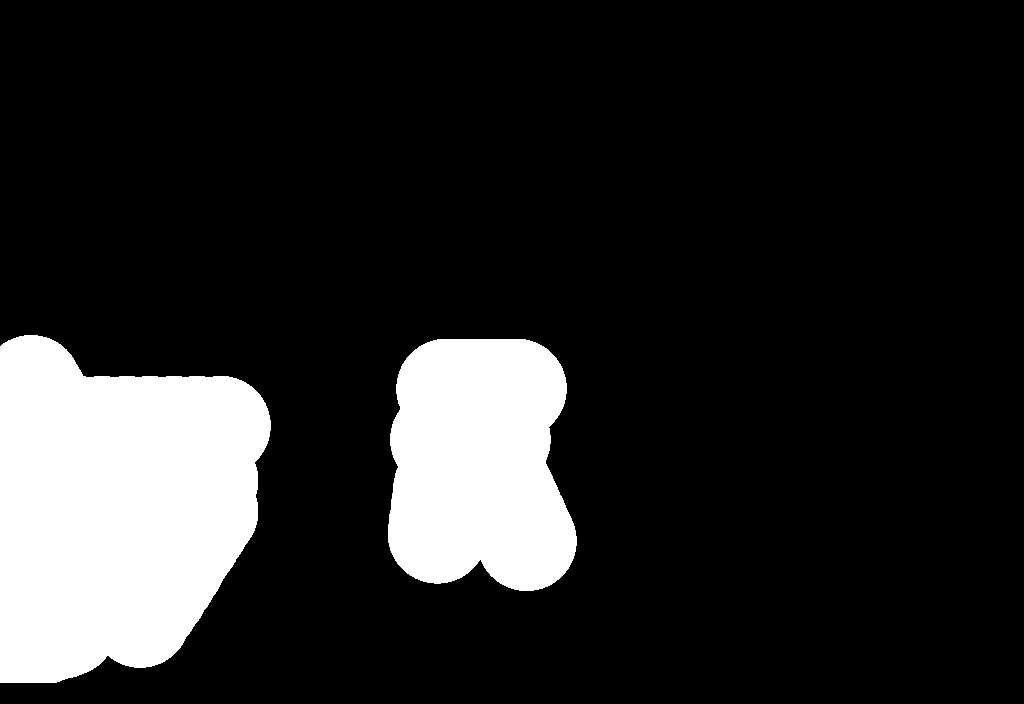
White marks the requested change. Black is the reference area to preserve.
Jarosław Ceborski · CC0 photograph. Generated September 24, 2026. First output, no retouching. Original and result dimensions may differ. These are project examples, not customer testimonials.
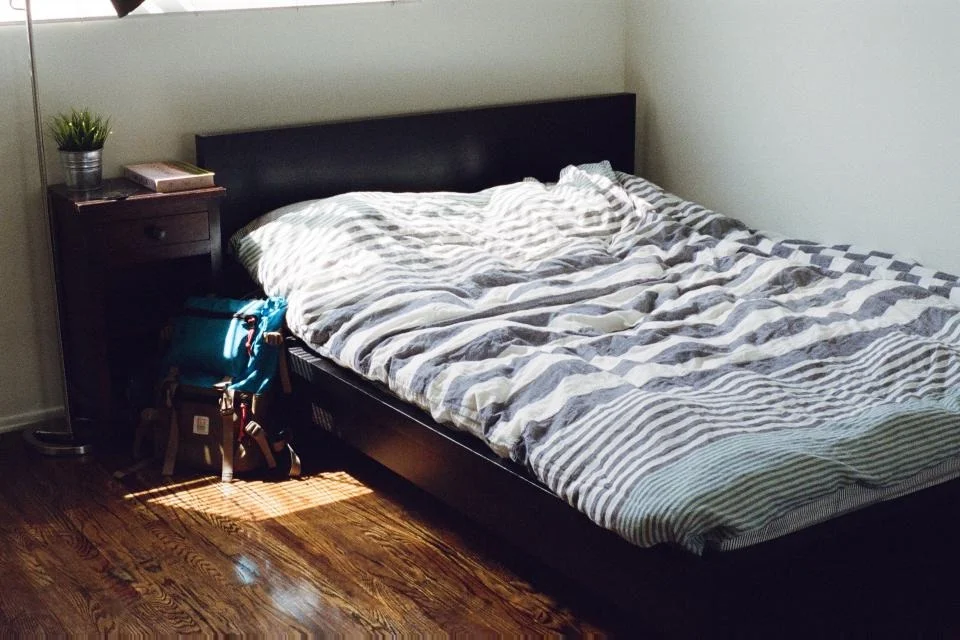
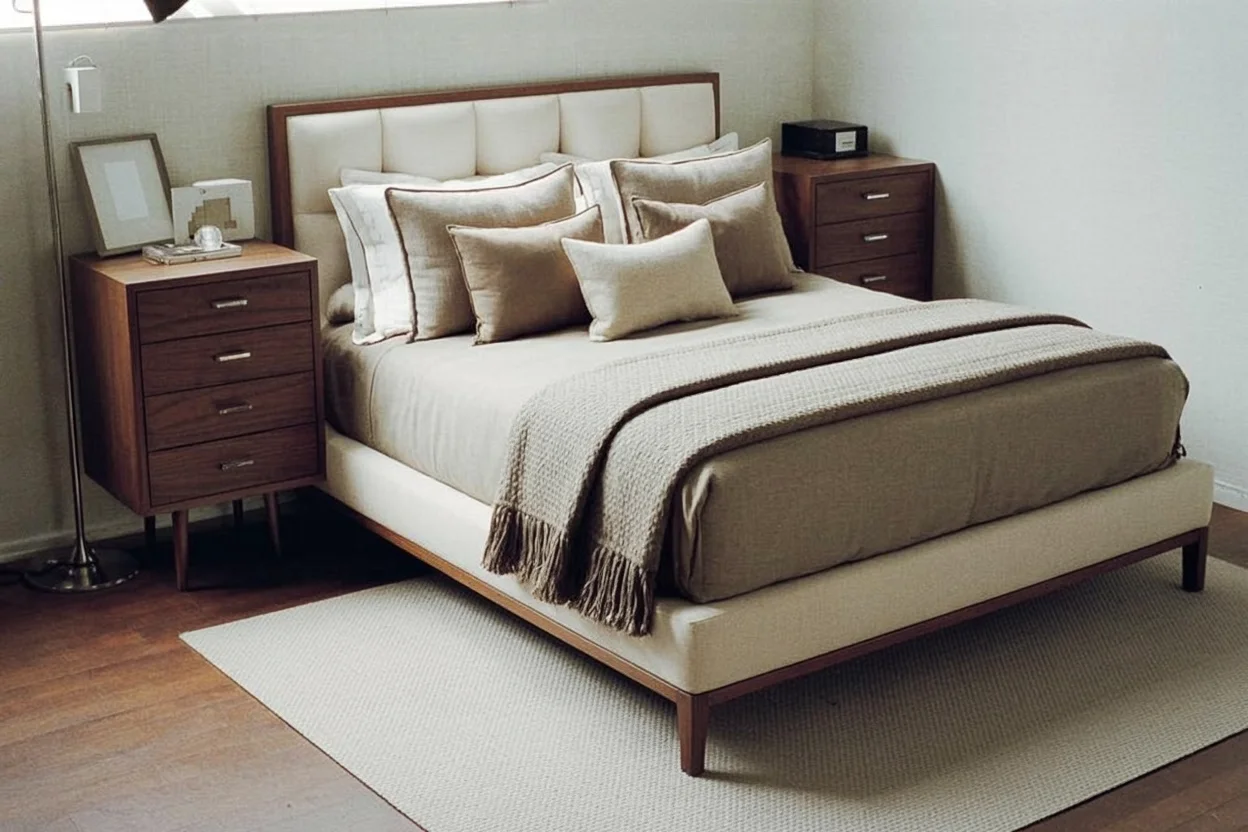
This example uses a broad selection covering most of the image. The bed becomes smaller and more of its foot is visible. It demonstrates a style direction, not exact furniture dimensions.
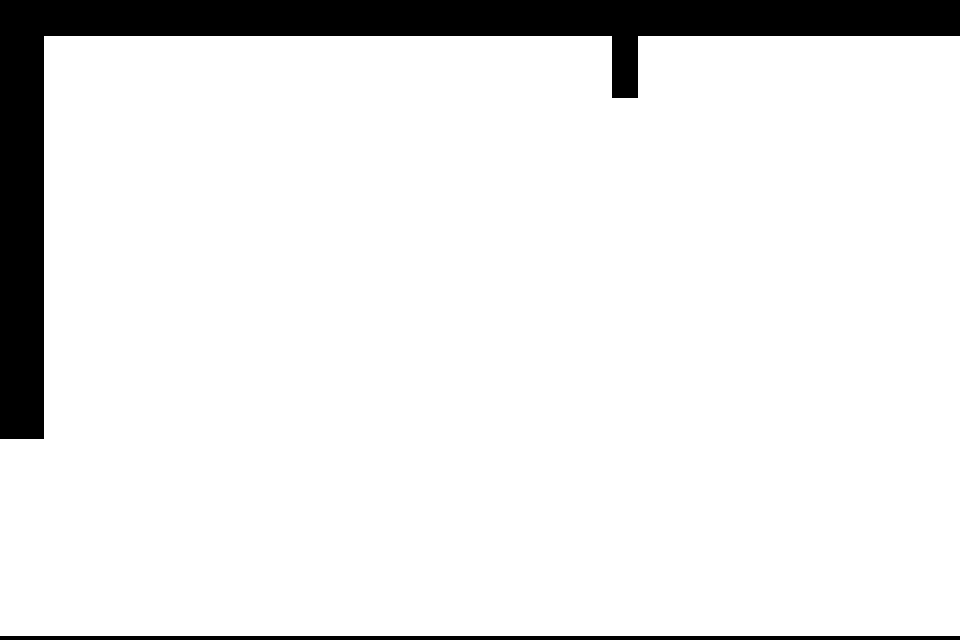
White marks the requested change. Black is the reference area to preserve.
Jay Mantri · CC0 photograph. Generated September 24, 2026. First output, no retouching. Original and result dimensions may differ. These are project examples, not customer testimonials.
Most remodel ideas start with one question: what would this room look like if the sofa, bed or rug changed? Use RoomRedecor as a room remodel AI preview before you buy anything — upload the room as it is, paint only the pieces you would replace, and keep the walls, windows and doors as your reference. To redesign a room with AI this way, you choose one style per image and compare it side by side with your original photo, so you judge the change in your own space rather than in a showroom.
Find your direction
Style inspiration to help you find your direction. These images are illustrative, not RoomRedecor results.
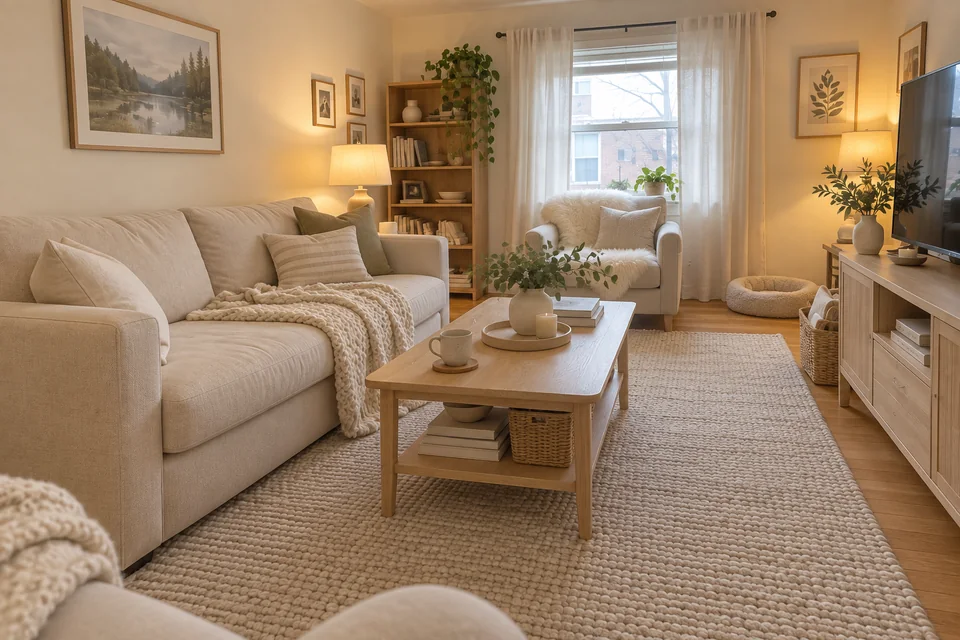
Soft textiles, pale timber and a lighter palette.
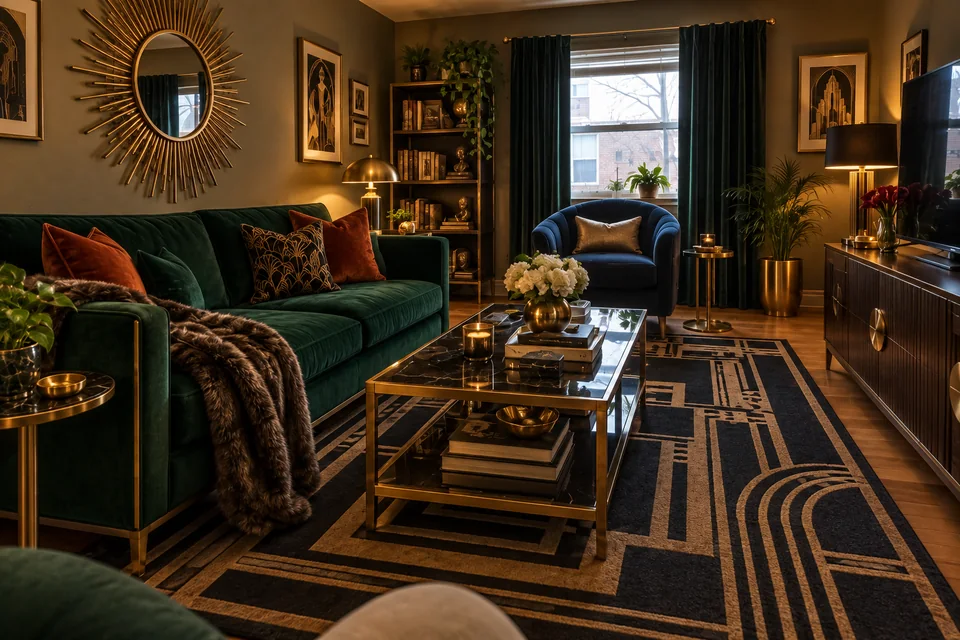
Jewel tones, velvet and warm metallic accents.
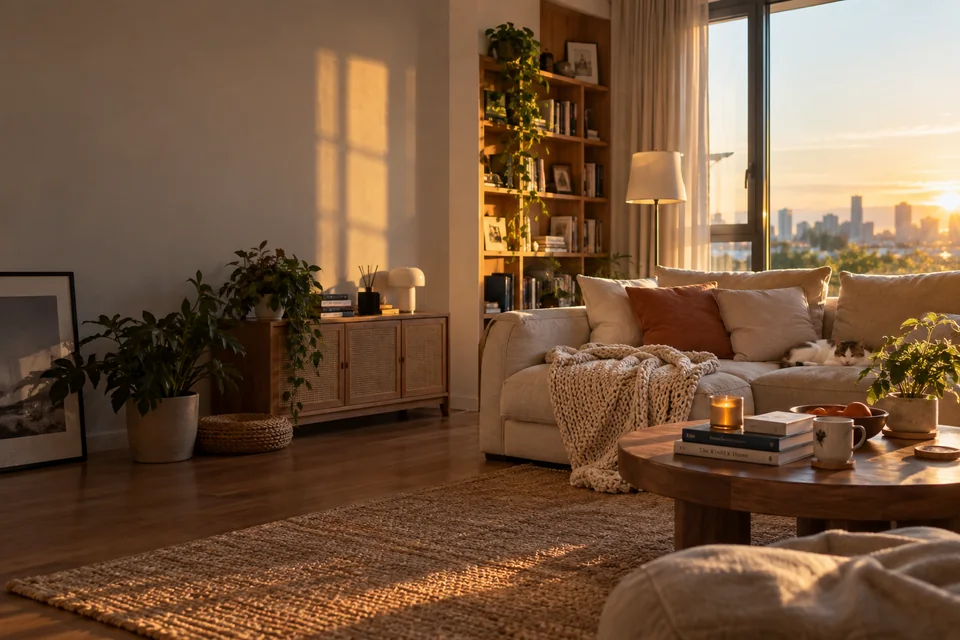
Simple silhouettes with warmth and natural texture.
Start with a living room or bedroom. Kitchen and bathroom are experimental.
Upload a photo or choose a practice room. Painting on samples never uses credits.
Brush over furniture and decor. Keep doors, windows and wall edges unpainted.
Modern, Scandinavian or Art Deco. One image per generation — compare and download.
Choose a starting point
Use your own photo or a practice image. Living rooms and bedrooms give the most reliable results; kitchen and bathroom are experimental.
Current style set
Choose a visual direction after you mark the area to change. These are style presets, not construction plans or furniture shopping lists.
Clean lines and quieter materials.
Light woods, simple forms and soft contrast.
Stronger contrast, geometric accents and richer finishes.
You paint the furniture and decor you want to change. The AI uses the unpainted room as a reference and aims to preserve its layout, windows and doors. Leave those features outside your selection.
This is not a structural lock: edges, proportions and unselected details can still change. Compare the complete before-and-after photos before using a result as inspiration. It is not a measured floor plan or a construction drawing.
The editor runs in a mobile browser without an app. Choose a JPG or PNG, paint with your finger, then use Erase and Undo to refine the selection. Start with one large item and use a smaller brush near its edges. On a small screen, work in short strokes; a larger screen can make detailed selections easier.
Mobile browser behavior varies. If your camera photo is HEIC, export it as JPG or PNG first. Keep this tab open while working; drafts stay in this browser for up to 24 hours and do not sync between devices. Tell us about problems through Contact.
Living rooms and bedrooms are the focus of our documented examples. Choose Modern for simpler shapes, Scandinavian for light woods and soft contrast, or Art Deco for richer colors and geometric accents. These are style directions, not a guarantee of specific furniture.
Kitchen and Bathroom are marked Experimental in the selector. Cabinet lines, fixtures and small spaces need further quality evaluation. They use the same generation credits; choose a living room or bedroom for your first run. All room types currently use selected-area editing, not automatic whole-room redesign.
Use a clear JPG or PNG, up to 20 MB and 4096 pixels on either side. Stand where the furniture and nearby walls are visible, keep the camera reasonably level, and avoid strong glare. A wider view usually gives the model more context than a close-up of one cushion. Remove private documents and personal details you do not want processed before selecting your file.
Paint over the complete item you want replaced, including its edges. Leave doors, windows and architectural details unpainted when you want to retain them. Use a smaller brush near edges, Erase to correct an overlap, and Undo to remove the last stroke. Selecting nothing or the entire image will prevent a selected-area generation. The photo-to-room-design guide explains common selection mistakes.
Choosing a sample or your own photo and painting a selection happen in your browser and use no credits; nothing is uploaded until you press Generate. Generating needs a signed-in account and one credit per image. The editor shows the current balance, any pause and any service problem before you submit. A sample image is not a promise of a particular result.
Sign in to buy credit packs and view orders. Credit packs are one-time purchases, not subscriptions, and the prices are listed below. New accounts get 3 free generations at first sign-in. If a generation fails or is blocked, its credit goes back to your balance automatically; a cash refund is a separate request through Orders & refunds. See the payment and refund terms before purchasing.
Compare the full original and generated image, then inspect the selected furniture, its legs, shadows and nearby edges. The model aims to retain the surrounding room, but unselected details can change too. Check the shape of doors and windows and the apparent scale of the furniture. Try a smaller, cleaner selection if the first result changes too much.
The main gallery shows AI-created design concepts, not current-editor results. Expand the recorded editor examples for actual outputs and attributed source photographs. Neither group is a customer testimonial or an average success rate. A result is a visual idea to discuss or refine, not a measured plan, an exact shopping list or construction advice. Follow the bedroom design workflow for a room-specific starting point, and review the documented examples for their limitations.
Sign in to buy a one-time credit pack through Stripe. There is no subscription or automatic renewal; purchased credits last 365 days. To request a refund for unused purchased credits, open Orders & refunds and select your order. Used credits, duplicate charges and service failures are reviewed individually.
A request does not issue an instant refund. Approved refunds return to the original payment method; bank processing time varies. A credit returned after a failed generation is not a cash refund. See the full refund policy for the process and contact details.
The editor can retain one draft in this browser for up to 24 hours, including the photo and painted selection. A refresh can restore it, and the editor's sign-in flow preserves the draft for your return. This is not cross-device storage, and browser privacy settings may prevent saving. Clear draft removes the local copy; switching accounts does not transfer another account's draft or results.
After generation, download the result within 24 hours. Stored images are private to the account that created them. Use My photos & privacy in the editor to request deletion. Access is blocked after expiry or deletion; storage cleanup may complete later. Image generation and safety providers process submitted images under their own policies. Read the privacy policy for processor and retention details.
New accounts start with 3 free generations. After that, each image uses one credit from a one-time pack, and packs stay valid for 365 days. Choosing a sample and painting a selection use no credits.
$4.99
One-time payment · valid 365 days
$9.99
One-time payment · valid 365 days
$19.90
One-time payment · valid 365 days
One generation creates one image. Download results within 24 hours. Read the refund policy.
Open the workbench